

How to Make White Background Product Photos for Ecommerce
White background product photos help online stores look cleaner, more consistent, and easier to shop. This guide explains when to use white backgrounds, how to prepare product images, and how to export them correctly.

In this article
Quick checklist
White background product photos are one of the most common image styles in ecommerce. They keep the focus on the item, make product pages feel cleaner, and help shoppers compare products more easily. Whether you sell clothing, accessories, cosmetics, home goods, electronics, or handmade items, a clean white background can make your store look more professional.
The good news is that you do not always need a full studio setup to create a white background product image. With an AI photo editor, you can remove the original background, clean the product, place it on white, and export an ecommerce-ready image faster.
Why white background product photos work
White backgrounds are popular because they reduce distractions. When the background is simple, shoppers can focus on the product shape, color, texture, and details. This is especially important on mobile screens, where product thumbnails are small and users scroll quickly.
A white background also helps create consistency. If every product photo has a different table, wall, lighting setup, or room background, the catalog can look messy. A consistent white background makes product grids easier to scan and gives the store a more polished look.
When should you use a white background?
White backgrounds are especially useful for practical ecommerce placements:
- Product detail pages: Show the item clearly without visual noise.
- Product category grids: Keep many products looking consistent together.
- Marketplace listings: Prepare cleaner product images for shopping platforms.
- Catalog images: Create a uniform style across many SKUs.
- Email and ads: Use simple product visuals that load quickly and stay readable.
- Comparison pages: Make it easier to compare product shapes and features.
White background vs transparent background
White background images and transparent background PNGs are both useful, but they serve different goals.
| Image type | Best for | Export format |
|---|---|---|
| White background product photo | Product pages, marketplace listings, catalog grids, ecommerce thumbnails | JPG, WebP, or PNG |
| Transparent background product cutout | Design assets, ad banners, social graphics, mockups, reusable product compositions | PNG |
If you want a clean final product image for an online store, a white background is often enough. If you want to reuse the subject across different backgrounds, start with a transparent PNG cutout and then create white-background versions from it.
A simple workflow to make white background product photos
The best white background product images usually start with clean background removal. After the subject is isolated, you can place it on white and make small improvements before export.
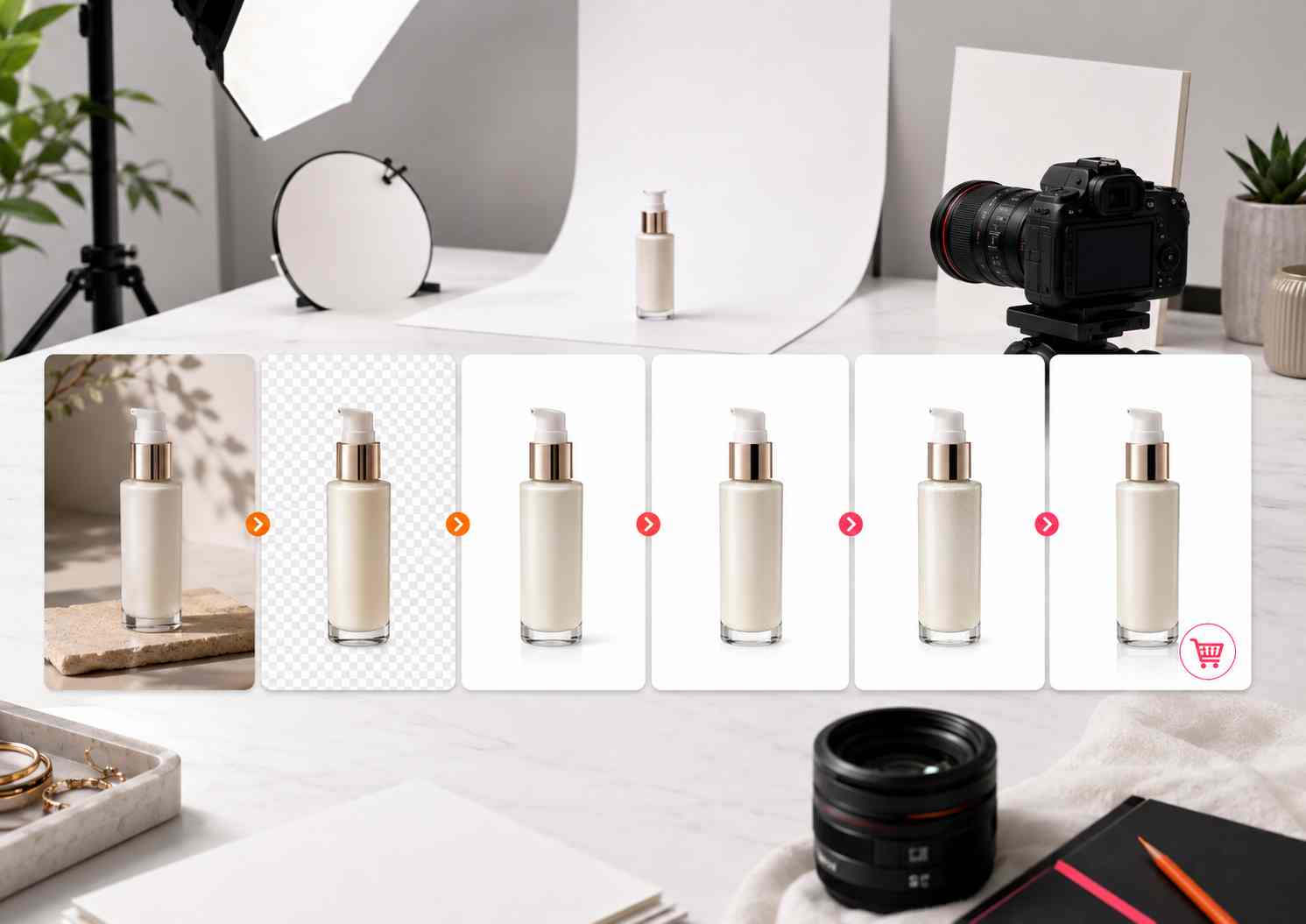
Step 1: Choose a clear product image
Start with a photo where the product is fully visible. Avoid images where the product is cut off, heavily blurred, or hidden by props. Good lighting helps, but the photo does not need to be perfect. The goal is to start with enough detail for the AI to identify the product shape.
Step 2: Remove the original background
Use an AI background remover to separate the product from the scene. This removes distracting tables, walls, rooms, floors, and inconsistent colors. After removal, check the product edges carefully, especially around handles, straps, glass, fabric, cables, and reflective surfaces.
Step 3: Place the product on white
Once the background is removed, place the product on a clean white canvas. Keep enough space around the item so it does not feel cramped. For product grids, try to keep similar products at a similar size and position.
Step 4: Clean small details
Look for dust, small marks, leftover background fragments, or uneven edges. Use object cleanup to remove small distractions before the final export. Do not remove important product details that affect what the customer is buying.
Step 5: Enhance carefully
Use AI enhancement to improve clarity, brightness, and sharpness. Be careful with color. Product photos should look polished, but they should still represent the real item accurately.
Step 6: Export for ecommerce
Export JPG or WebP when you want a lightweight product image for a website. Use PNG if you need lossless quality or if the image is part of a design workflow. For most ecommerce pages, optimized JPG or WebP is usually practical.
Before and after: why white backgrounds improve product photos
Changing a messy or inconsistent background into a white background can make the image feel cleaner immediately. The product becomes easier to inspect, and the final image is easier to reuse in a store layout.
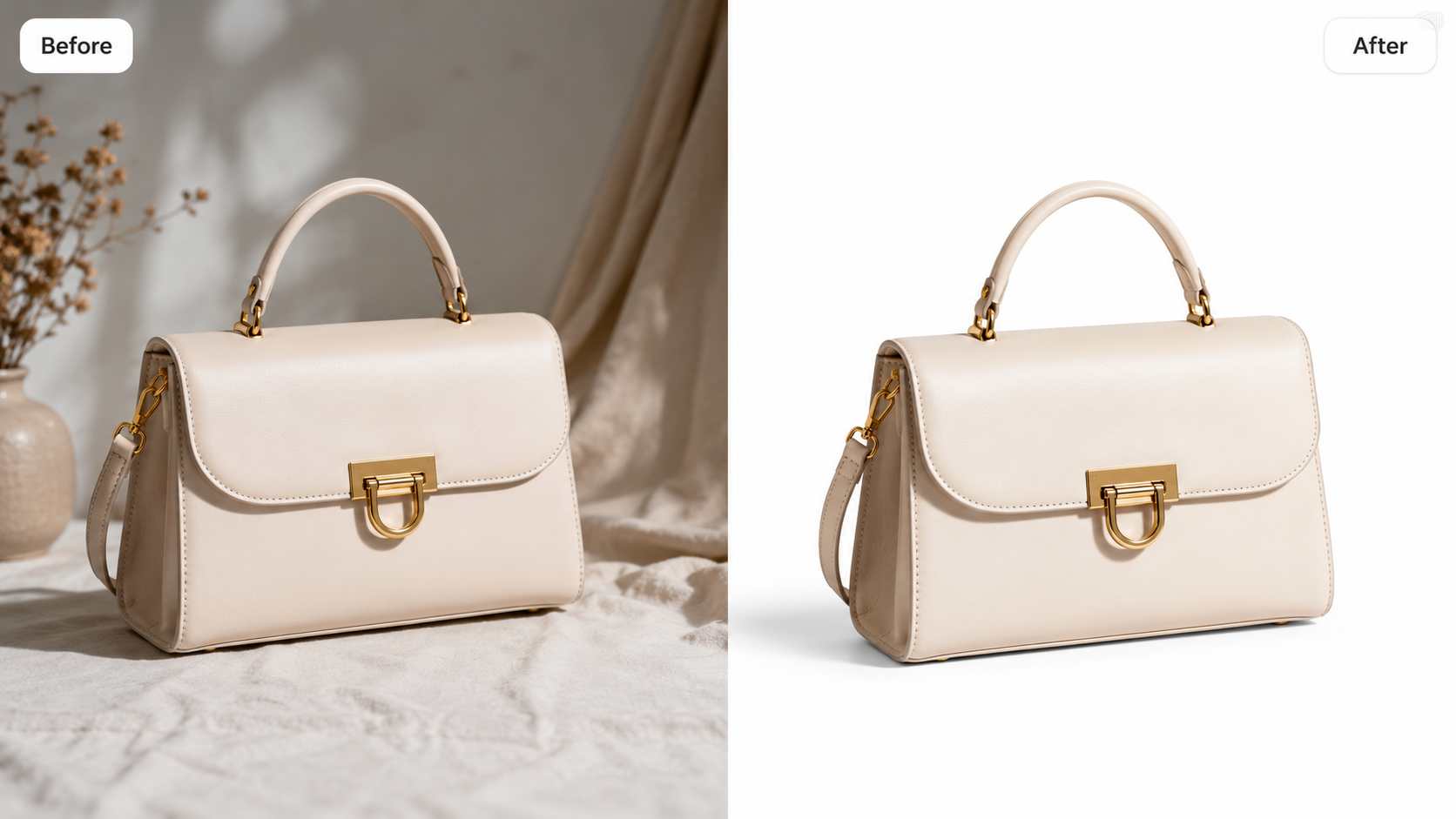
| Before white background | After white background |
|---|---|
| Background may distract from the item | Product becomes the clear focus |
| Catalog grid may look inconsistent | Products feel more organized together |
| Lighting and surfaces may vary across photos | Store visuals feel cleaner and more uniform |
| Image may look less marketplace-ready | Photo looks more suitable for ecommerce listings |
| Manual editing can take longer | AI tools can speed up repeatable product edits |
Best practices for white background product photos
A white background should make the product easier to see, not make the image look flat or fake. Use these best practices:
- Keep natural product shape: Do not stretch, warp, or reshape the product.
- Preserve true color: Avoid enhancement that changes the real product color.
- Review edges: Check for rough cutouts or leftover background pixels.
- Use consistent spacing: Products in the same catalog should feel balanced together.
- Keep shadows subtle: A light shadow can help the product feel grounded.
- Optimize file size: Large images can slow down product pages.
Common mistakes to avoid
White background product photos look simple, but small mistakes can reduce quality:
- Leaving jagged edges around the product.
- Removing important product parts such as straps, handles, cords, or transparent details.
- Making the background slightly gray or uneven when it should be clean white.
- Over-enhancing the product until the color looks inaccurate.
- Exporting files that are too large for web use.
- Cropping products too tightly so they feel cramped in product grids.
Recommended export formats
| Format | Best for | Notes |
|---|---|---|
| JPG | Most ecommerce product pages | Good quality with smaller file size |
| WebP | Modern online stores and optimized websites | Often smaller than JPG while keeping strong visual quality |
| PNG | Design assets or high-quality product images | Useful when you need clean edges or further editing |
How PixEdit helps create white background product photos
PixEdit helps you build a simple ecommerce photo editing workflow. Start with background removal to isolate the product, use object removal to clean small distractions, improve clarity with AI enhancement, and use image upscaling when you need a larger final export.
This workflow is useful for online sellers, small brands, marketplace listings, product catalogs, ads, and website visuals. Instead of editing every product photo manually, you can create clean white background images more consistently.
Final thoughts
White background product photos are simple, but they are powerful. They help shoppers focus on the product, make catalogs feel more consistent, and prepare images for ecommerce placements faster.
Start with a clear source image, remove the background, place the product on white, clean the edges, enhance carefully, and export an optimized file. A clean product image can make your store feel more trustworthy and easier to shop.
PixEdit workflow