

Create New Scenes With AI Fill
Upload a photo, describe the background or scene you want, and let PixEdit generate a fresh AI-filled result for products, portraits, ads, and social content.
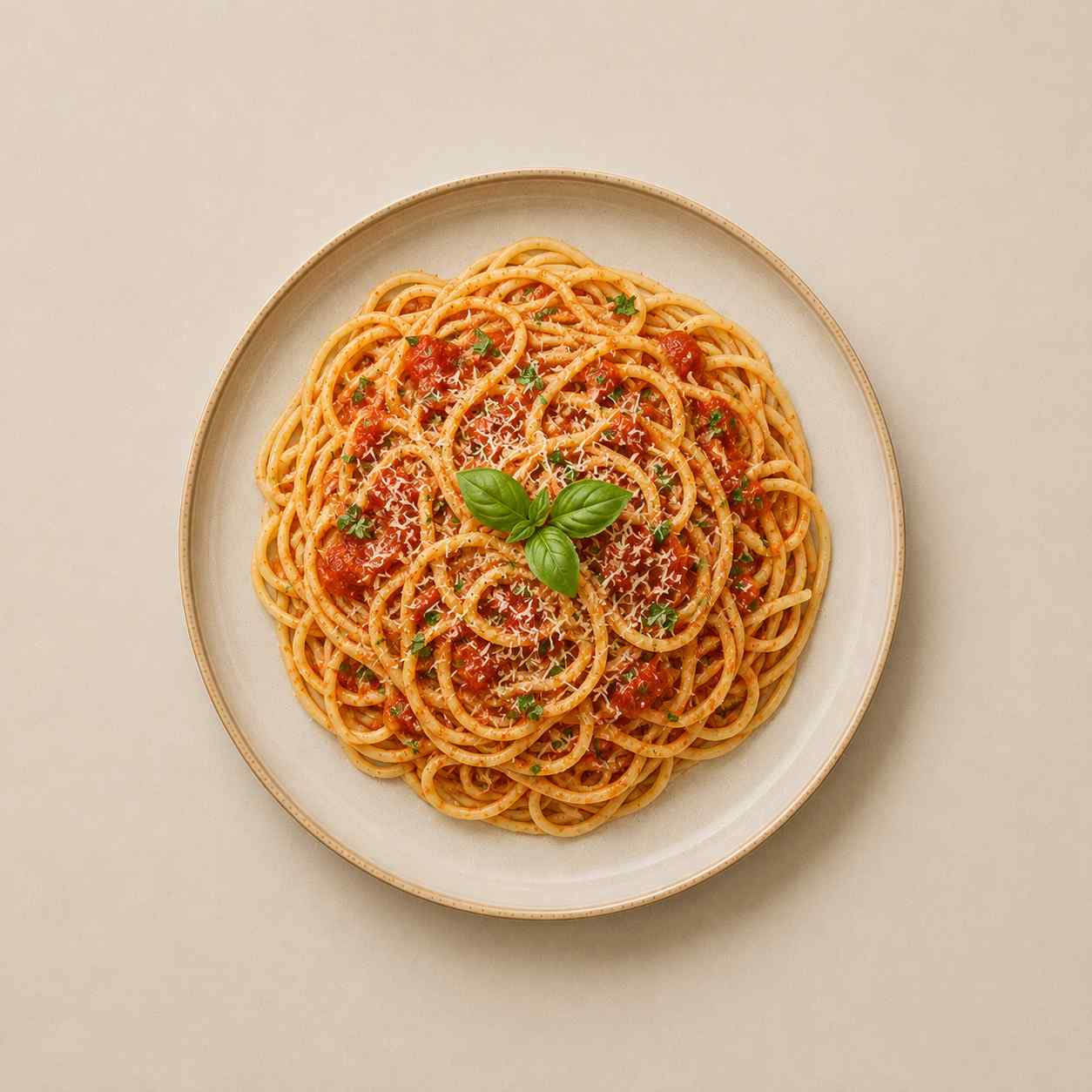
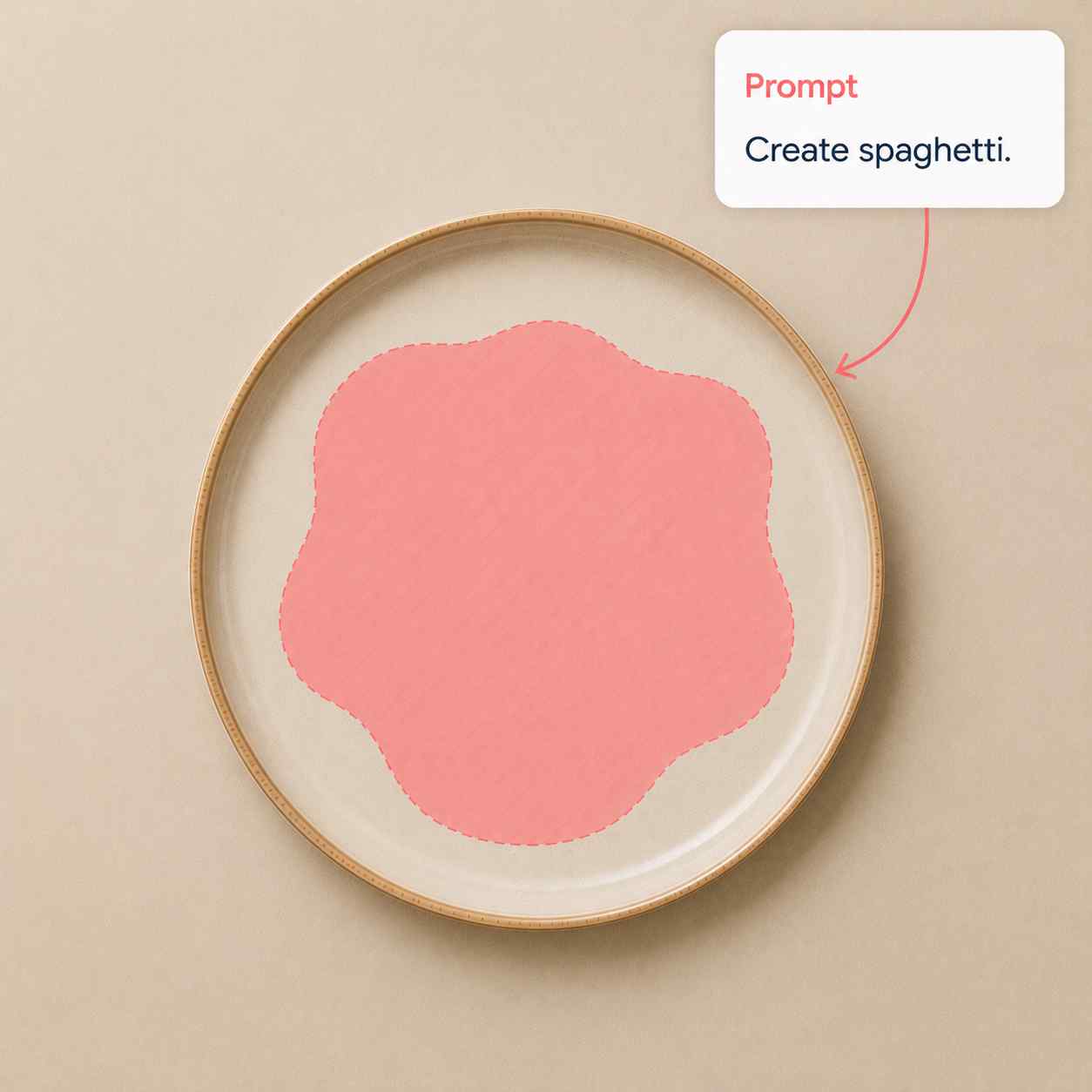
Drop your image here
or click to browse • Ctrl + V to paste
Or try with sample:
Generate AI Fills In Three Steps
Start from any photo, describe the scene, then refine the result in the editor.
Upload a photo
Choose a product, portrait, lifestyle image, or creative asset you want to transform.
Describe the fill
Write a prompt for the new setting, backdrop, lighting, or visual style.
Export the result
Download the generated image or keep adjusting tone, scale, and rotation.
AI Fill Ideas For Daily Creative Work
Generate campaign variants, product scenes, social posts, and concept images from a single upload.
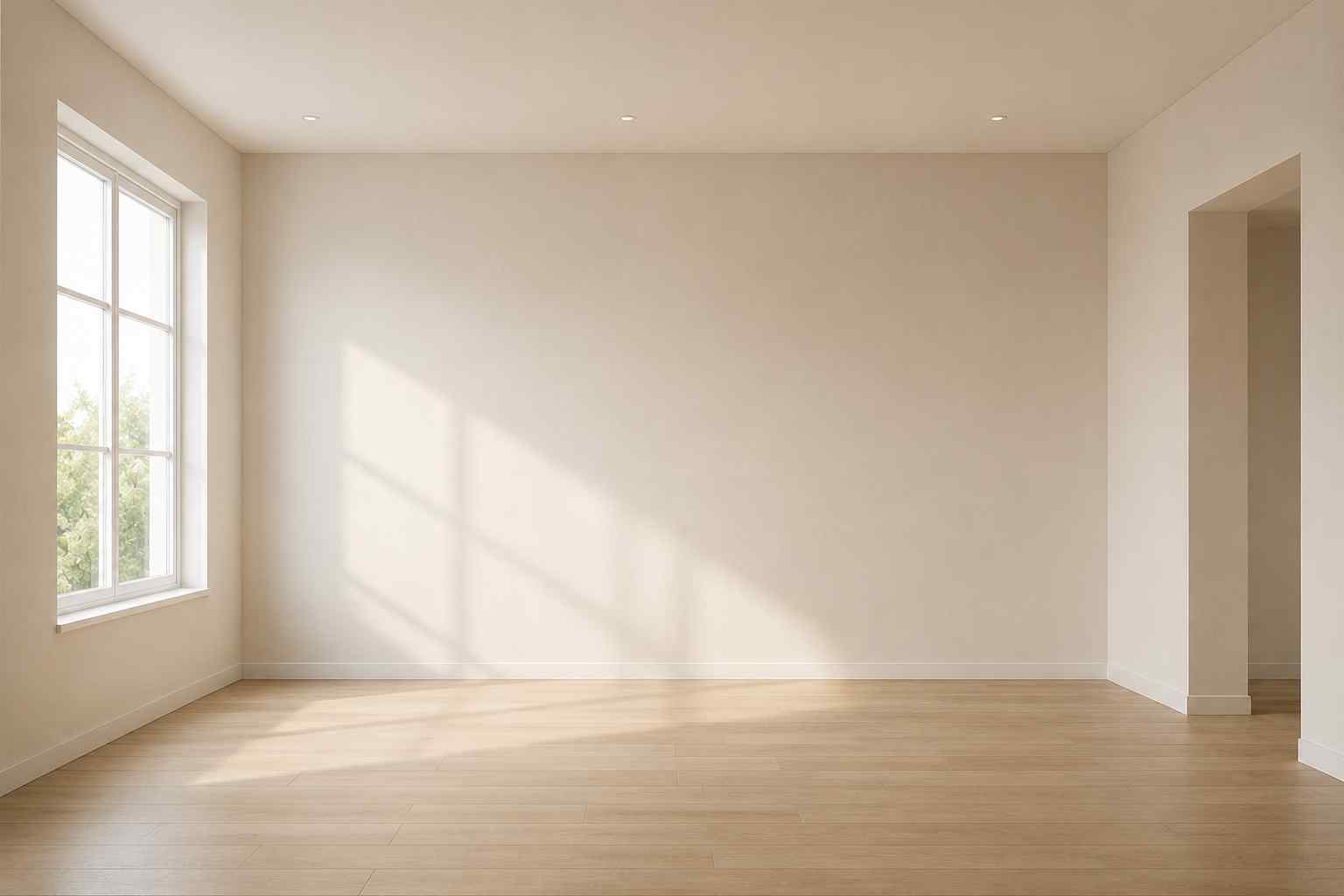
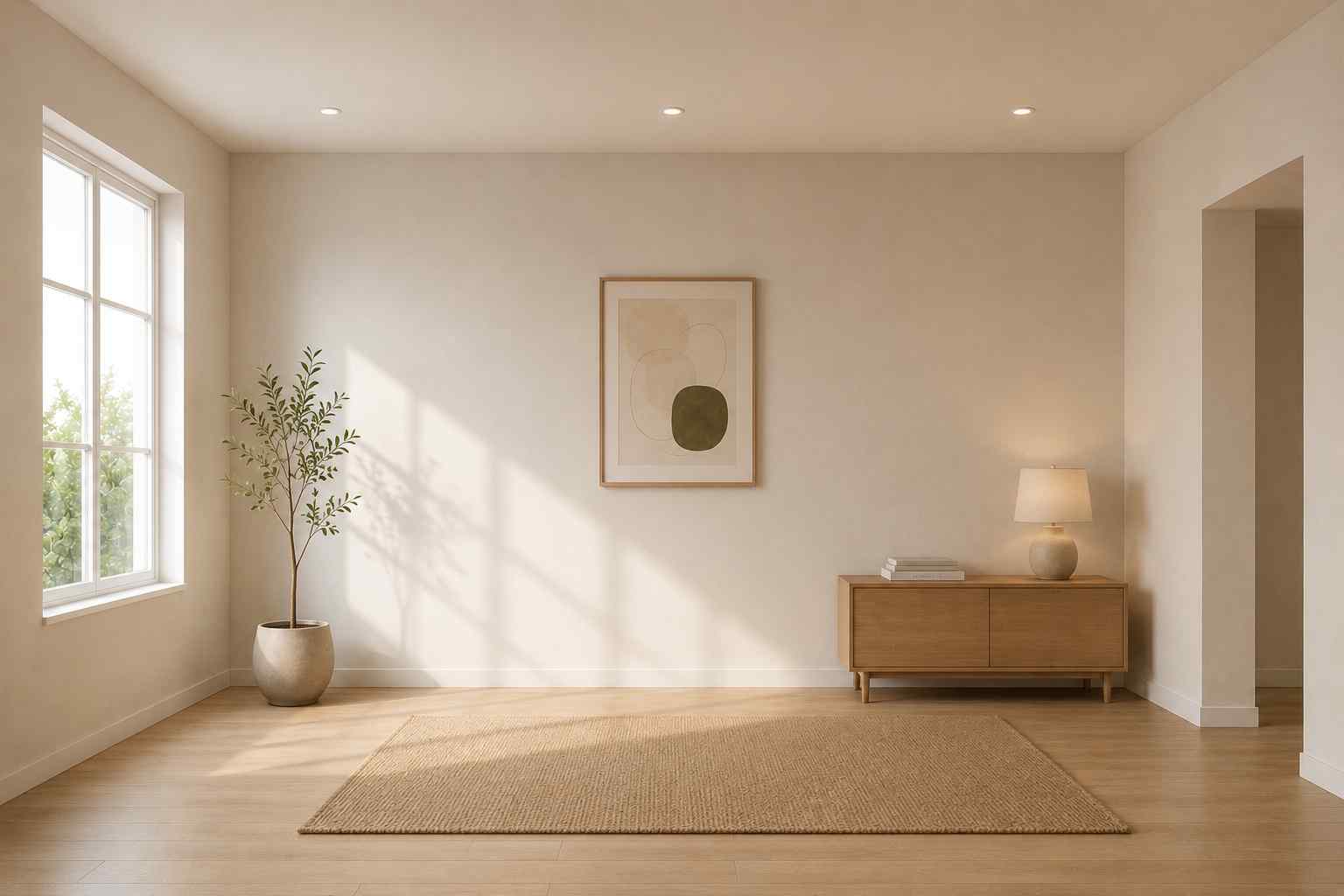
Products
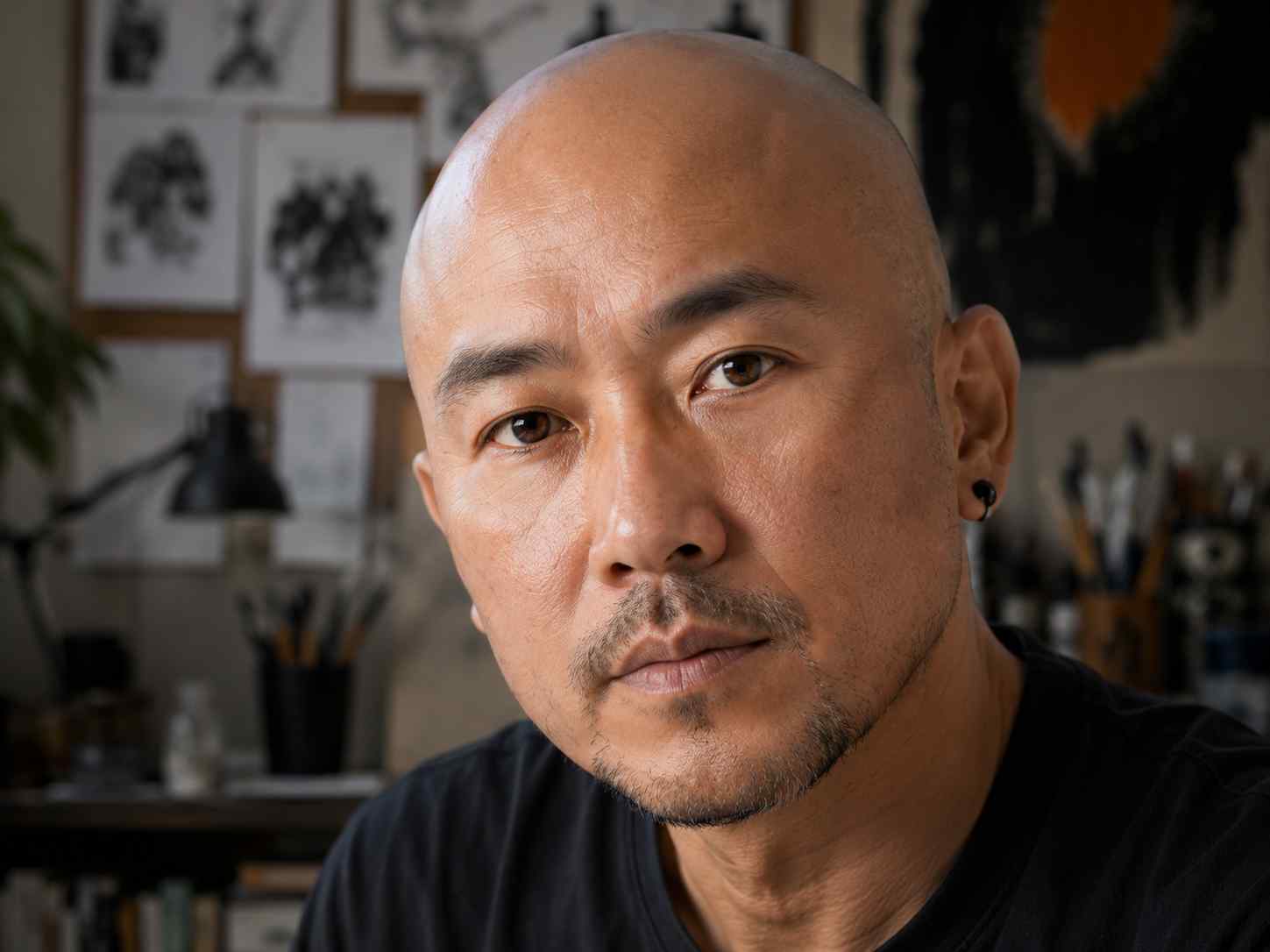
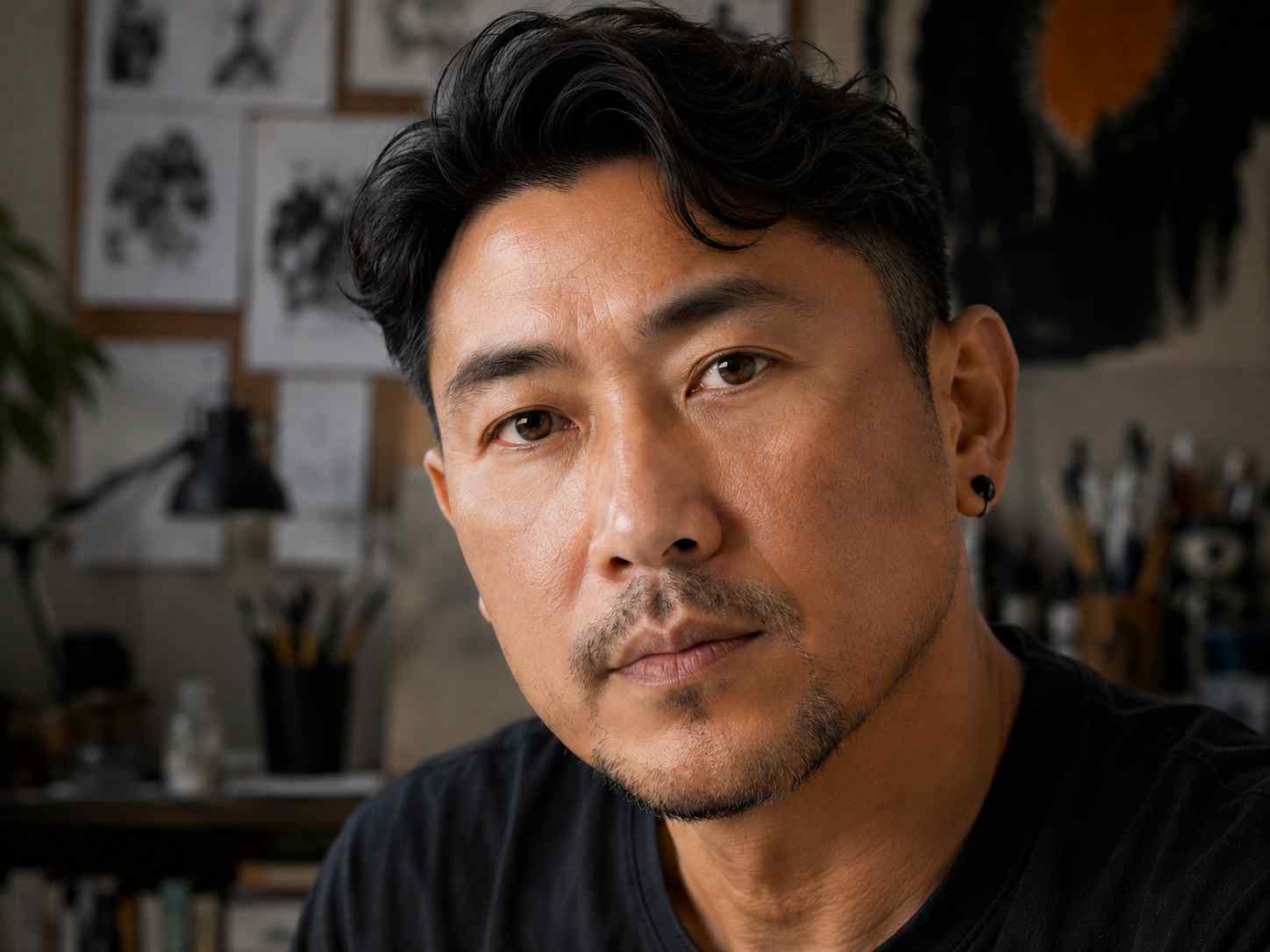
Portraits
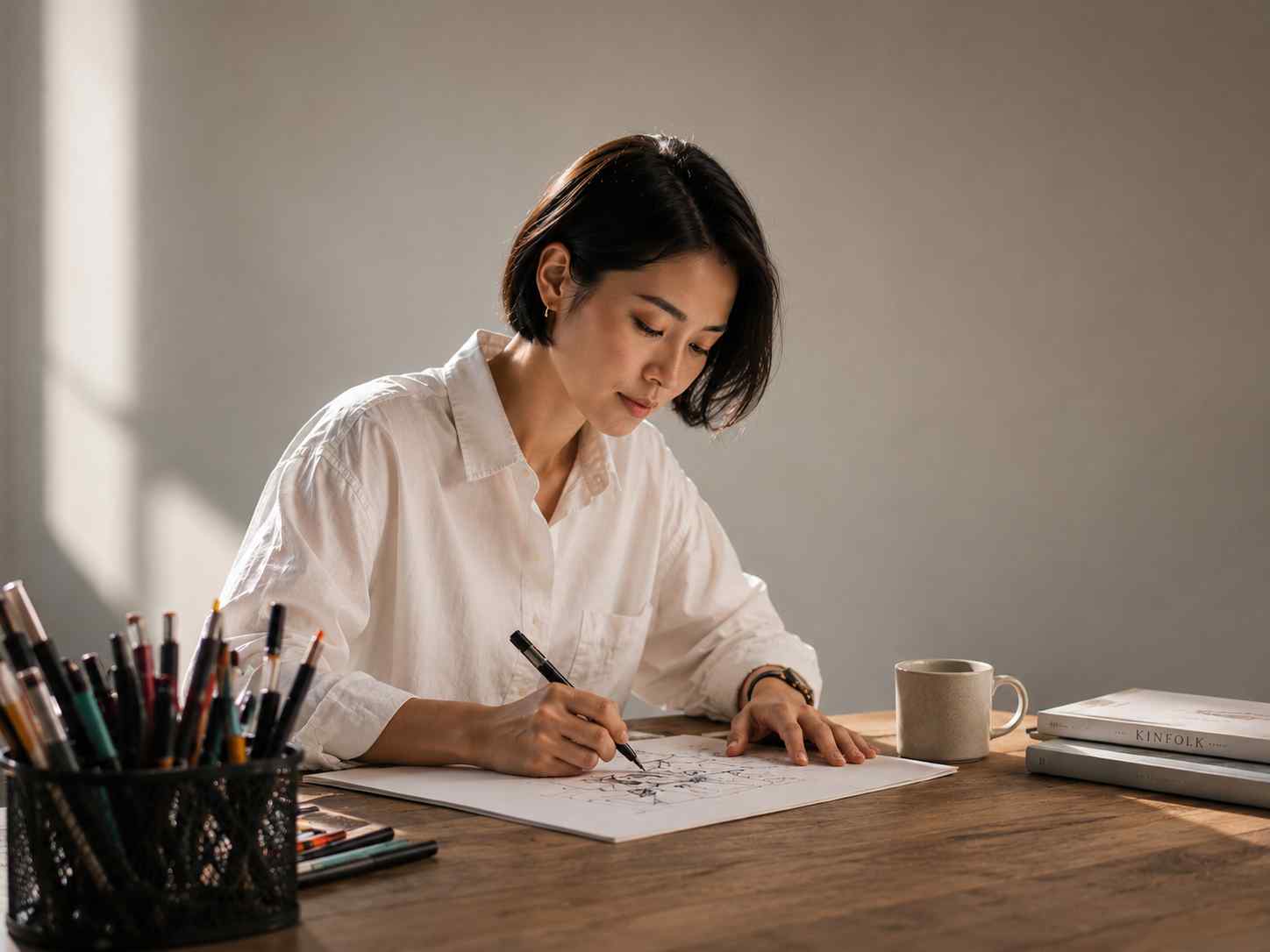
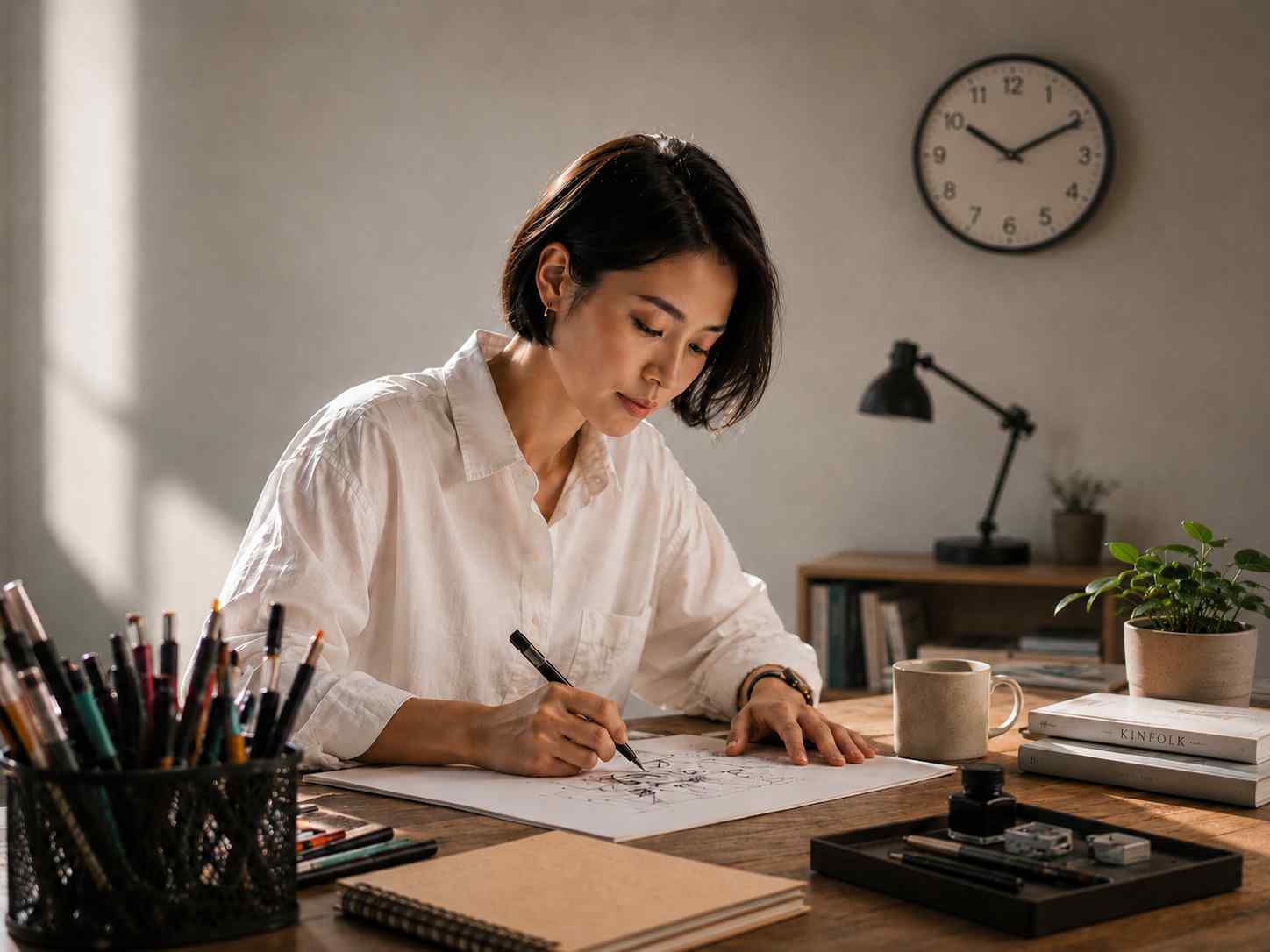
Campaigns
Where AI Fill Helps
Upload a photo, describe the background or scene you want, and let PixEdit generate a fresh AI-filled result for products, portraits, ads, and social content.
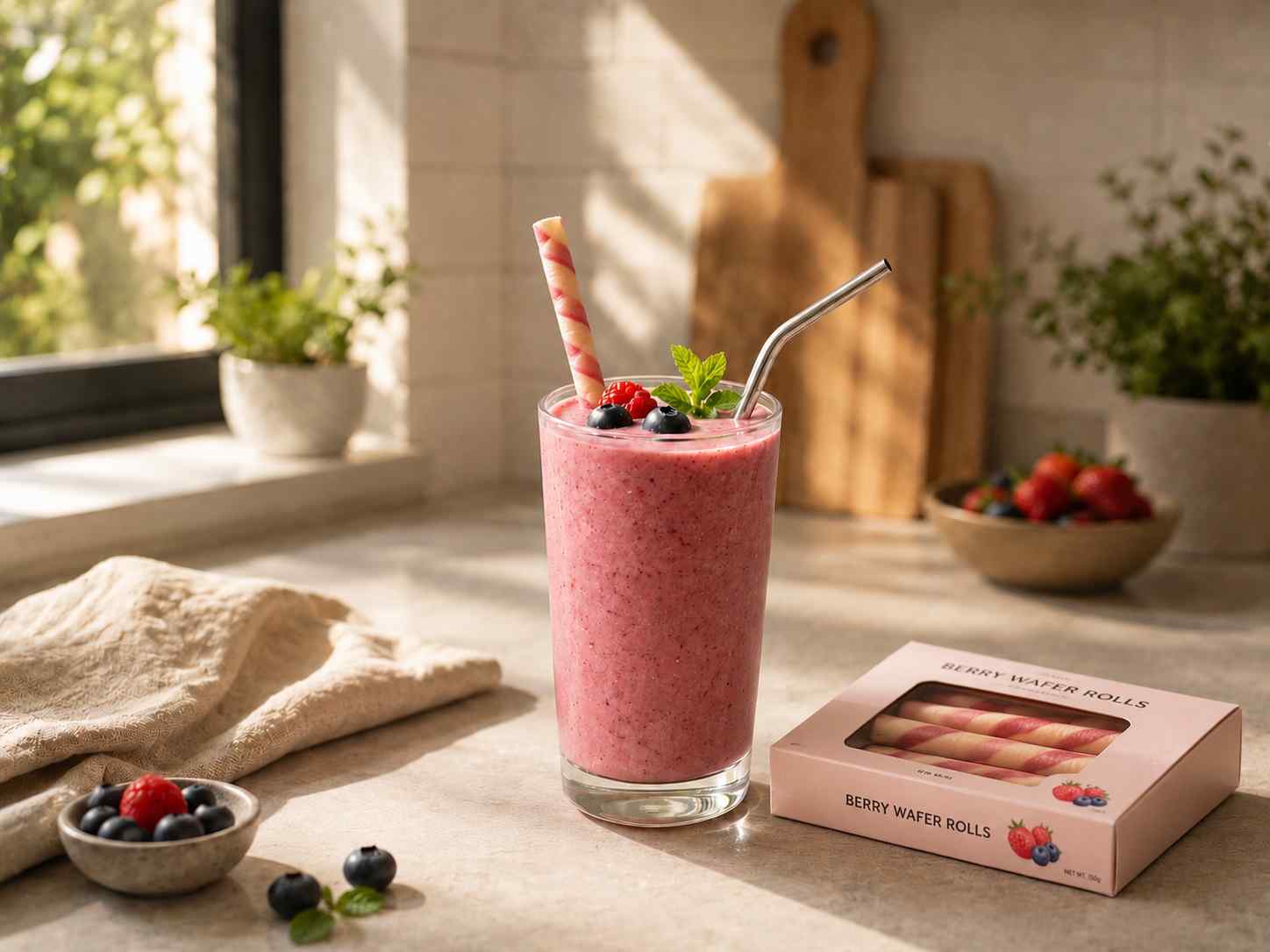
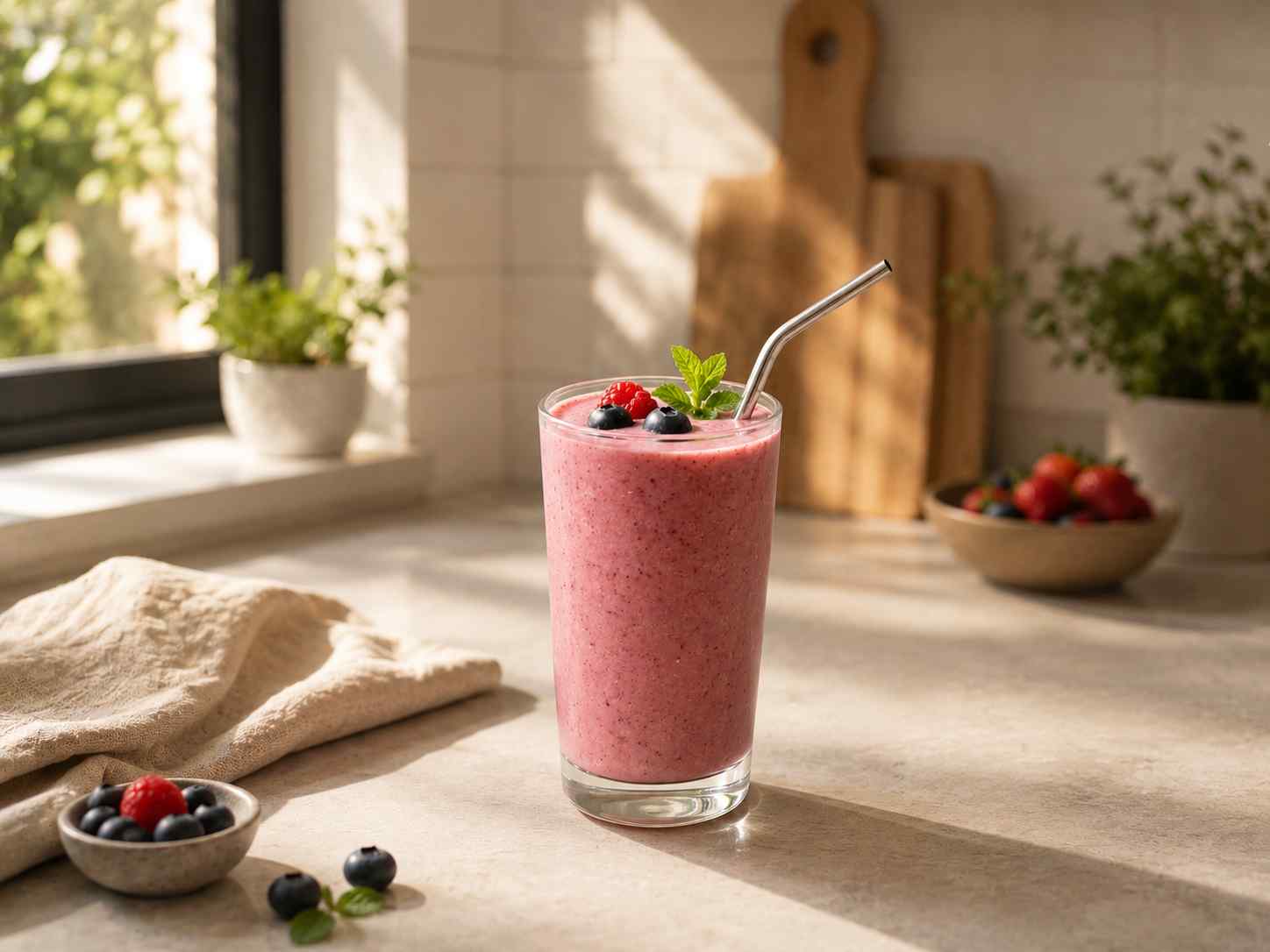
Product Campaigns
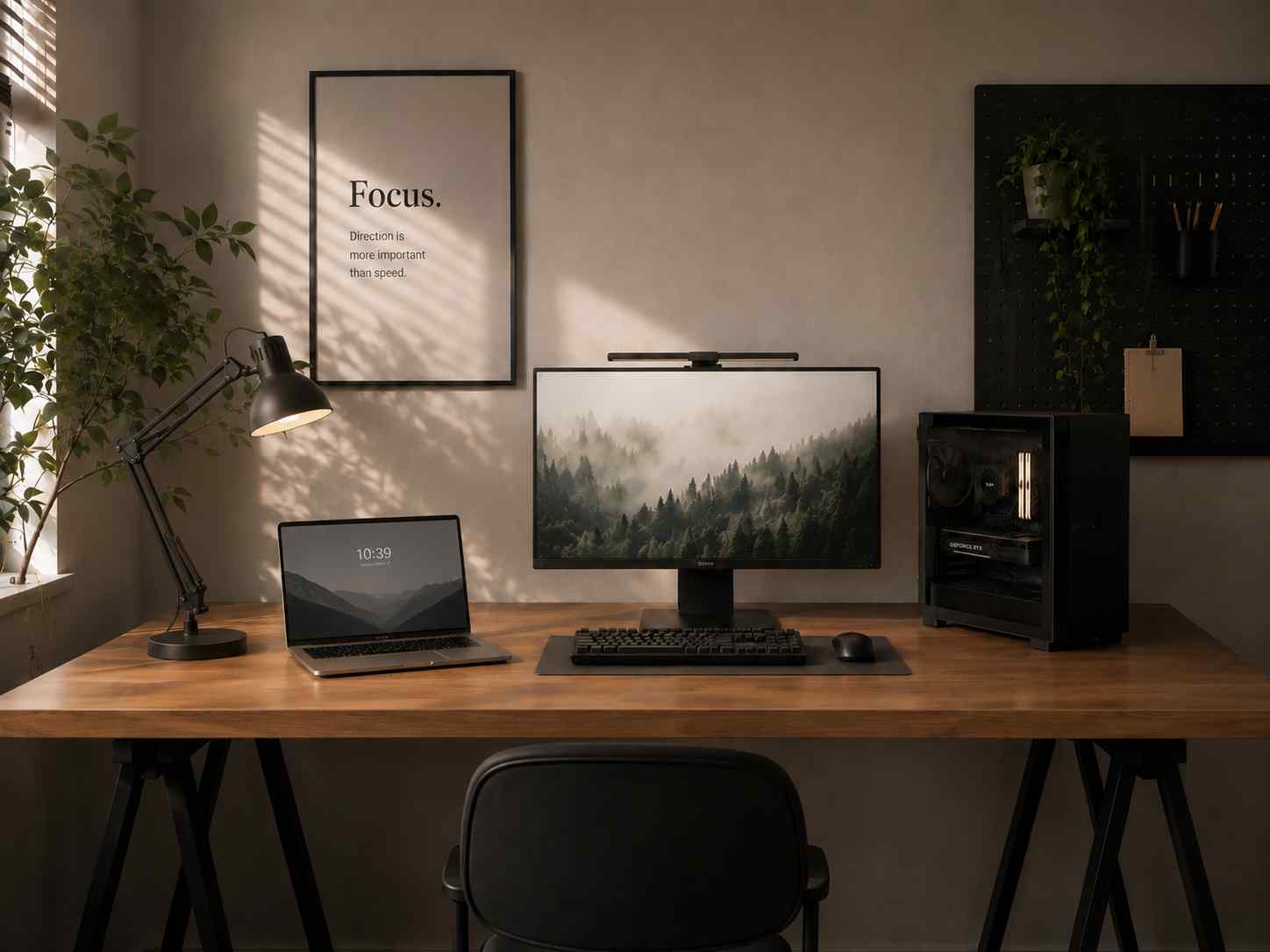
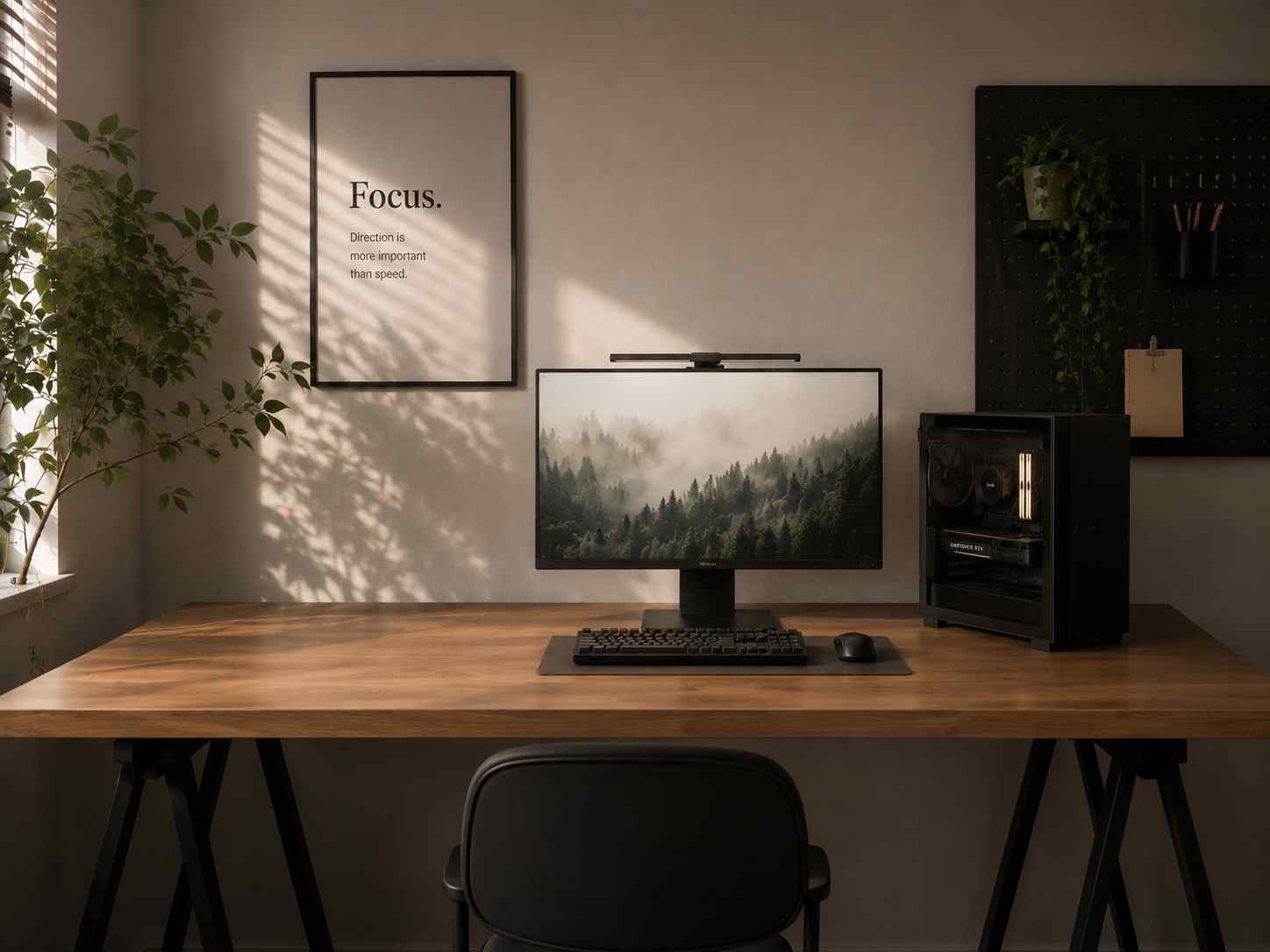
Place product photos into seasonal, studio, or lifestyle scenes without organizing a new shoot.
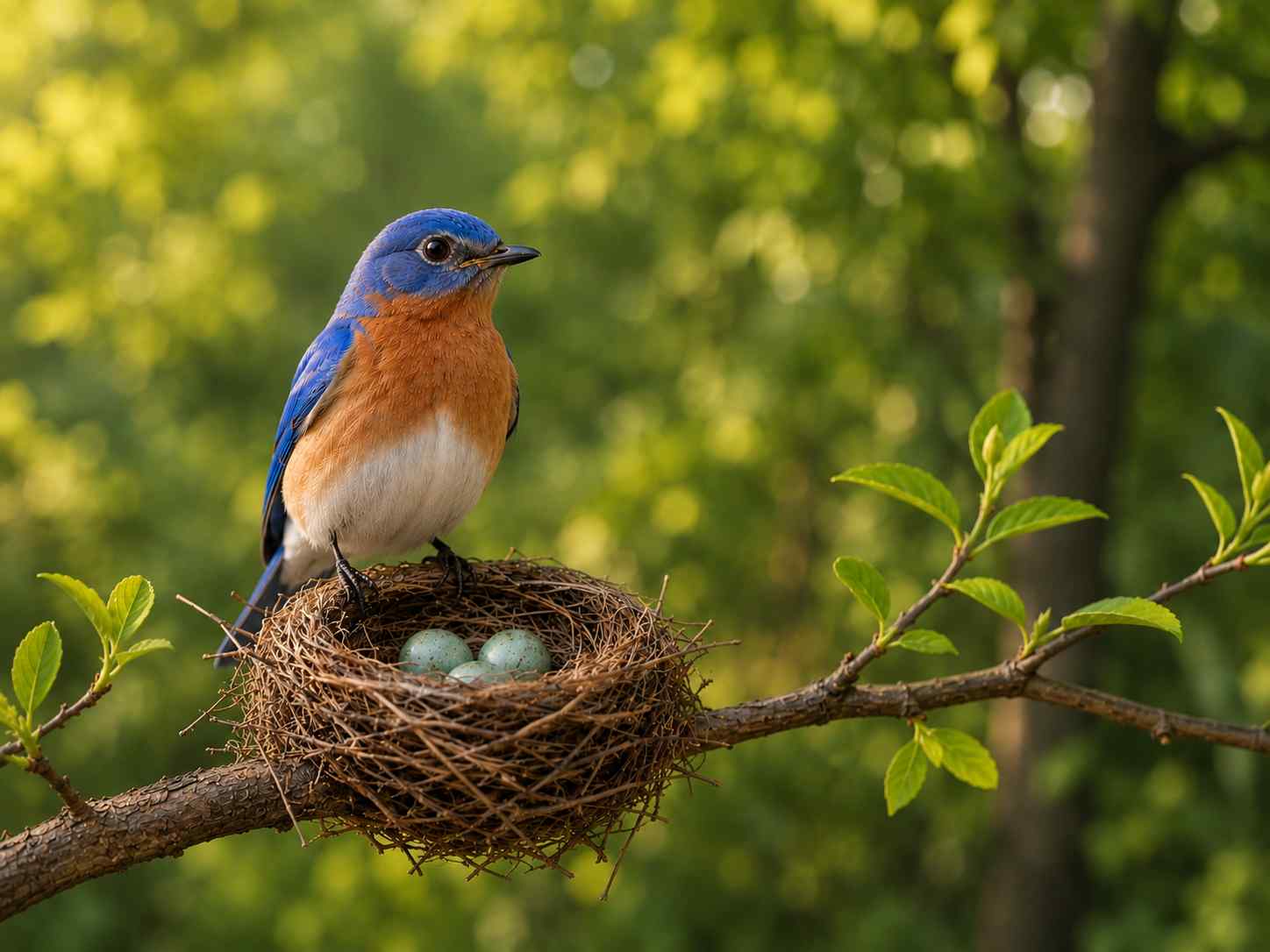
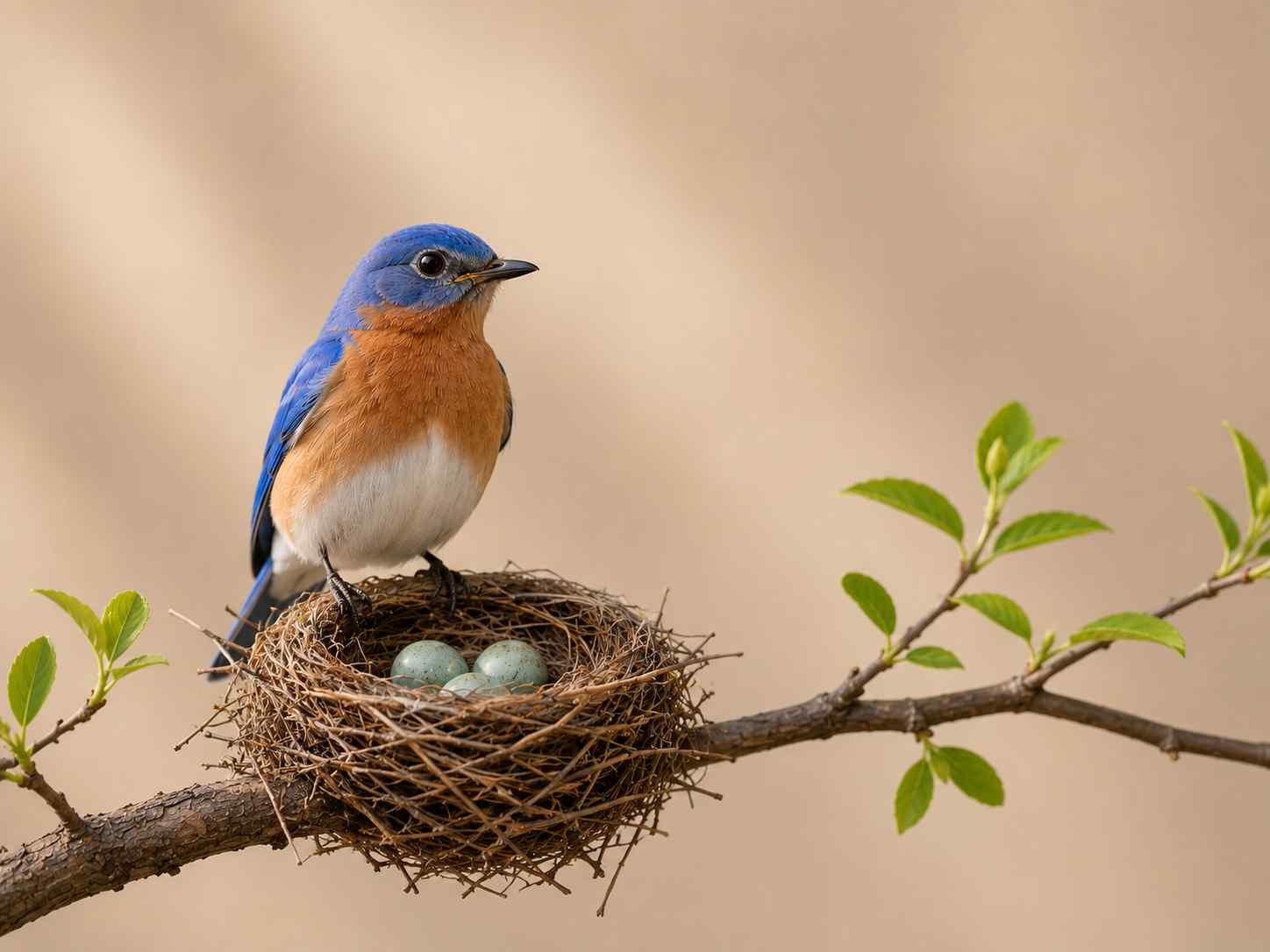
Social Content
Create multiple post concepts from one image by changing the background prompt.
Creative Direction
Mock up visual treatments, moods, and environments before committing production time.
Why Use AI Fill
Move from one source image to many polished concepts with less manual editing.
Prompt-Based Control
Describe the scene you need instead of manually searching and compositing assets.
Background Generation
Create studio, lifestyle, outdoor, interior, or abstract backdrops around your image.
Fast Creative Variants
Generate alternate concepts quickly for ads, thumbnails, product shots, and social visuals.
Manual compositing vs. AI Fill
Skip stock hunting, masking, and scene matching. Prompt a new result directly from your upload.
Built For Prompted Image Editing
Generate visual context, then finish the image with familiar editor controls.
Key workflow strengths
Generate visual context, then finish the image with familiar editor controls.
Prompted Fill
Use natural language to create a new background, setting, or visual direction.
Editor Workflow
Preview the generated output, compare with the original, and keep editing in place.
Clean Export
Download the final AI-filled image for web, ads, presentations, or social channels.
AI Fill FAQ
Everything you need to know about AI generative fill.
What should I write in the prompt?+
Describe the setting, lighting, style, and mood you want, such as soft studio backdrop, warm daylight, realistic shadows.
Can I generate more than one result?+
Yes. Run another prompt or change the seed to create a different variation from the same image.
Can I edit after generation?+
Yes. You can adjust brightness, contrast, saturation, scale, rotation, and download the final image.
Still have questions?
Contact our support teamGenerate Your AI Fill Now
Upload a photo and create a fresh AI-generated scene with PixEdit.