


PixEdit LogoPixEdit

PixEdit Help Center

PixEdit Help Center for AI Photo Editing Support

Get PixEdit help for uploads, exports, background remover, object remover, AI fill, image enhancer, upscaler, and common editing issues.

Support workspace for product help and documentation

Support topics

Find the right fix for each step of AI photo editing

Use the PixEdit help center to solve upload errors, choose the best AI image editor tool, improve edit quality, and export images for ecommerce, social, web, or client delivery.

Upload troubleshooting

Fix image upload issues before editing

Start with a file PixEdit can process smoothly. Learn what to check when an image will not upload, loads slowly, or looks different after import.

  • Check supported file formats and image size
  • Troubleshoot browser, connection, and upload errors
  • Prepare cleaner source images for better AI edits
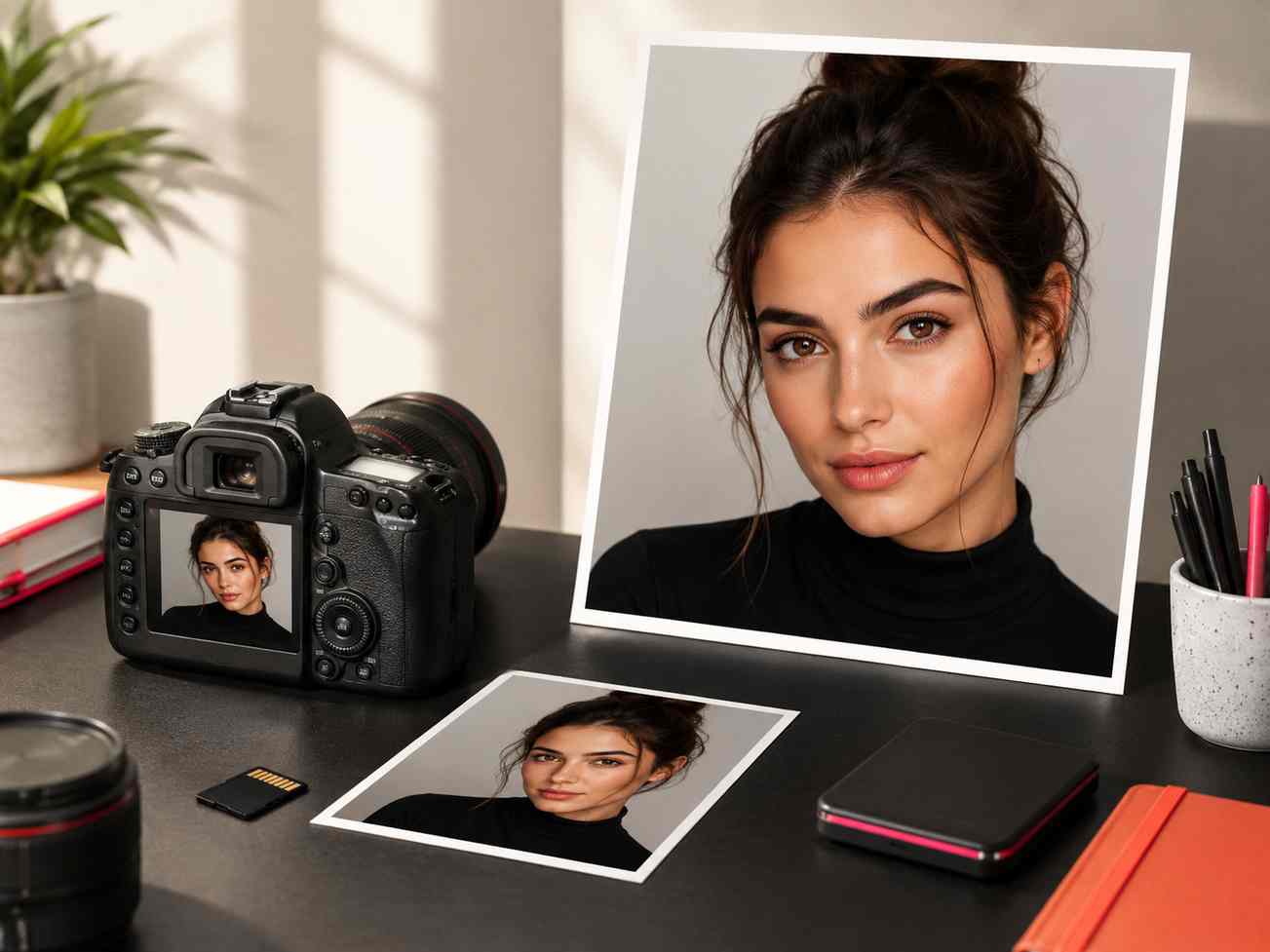
Start with a file PixEdit can process visual

Tool guidance

Choose the best PixEdit AI tool for your task

Match the editing job to the right workflow, from background remover and object remover to AI fill, AI image enhancer, and image upscaler.

  • Use background remover for clean product and profile images
  • Use object remover or AI fill for photo cleanup and layout fixes
  • Use enhancement and upscaling to improve image quality
Understand what each AI tool is best for visual

Result improvement

Improve AI photo editing results that need another pass

Learn how to get cleaner edges, more realistic fills, sharper detail, and better outputs when the first edit does not fully match the goal.

  • Improve cutout edges and background removal quality
  • Keep object removal and AI fill edits natural
  • Enhance low-resolution or compressed source images
Improve the final image when the first edit is not enough visual

Export support

Export edited images for the right channel

Download images in a practical size for online stores, marketplaces, landing pages, social posts, ads, client previews, and campaign assets.

  • Choose export settings for web, ecommerce, and social media
  • Prepare edited images for faster publishing workflows
  • Reuse final assets across stores, ads, and content channels
Download images for the right destination visual

Support workflow

A simple path to solve common PixEdit issues

The help center follows the same AI photo editing flow users follow in PixEdit: upload, choose a tool, improve the result, and export.

1

Find the editing stage

Start by identifying where the issue happens: upload, tool selection, edit quality, or export.

2

Open the matching help topic

Go directly to the support topic that matches the problem instead of reading unrelated documentation.

3

Apply the recommended fix

Adjust the file, tool, prompt, source image, or export choice, then run the edit again.

4

Continue the photo workflow

Return to PixEdit with a clearer next step and a final image that is easier to publish.

Support outcome

Practical PixEdit help for faster photo editing

This hub gives users quick answers for the most common AI image editing problems, from failed uploads to background removal issues and export questions.

This hub gives users quick answers for the most common AI image editing problems, from failed uploads to background removal issues and export questions.

4

Editing stages covered

6

Core AI tool workflows

Fast

Answers for support intent

Outputs created with PixEdit

Upload issue example

Upload troubleshooting

Tools used

File formatImage size
Tool issue example

AI tool selection

Tools used

Background RemoverObject Remover
Export issue example

Export and publishing

Tools used

ResolutionPublishing destination
Get back to editing faster visual

Next step

Solve the issue and get back to editing

Use the right PixEdit help topic, fix the editing blocker, and continue creating clean images for ecommerce, social media, websites, and campaigns.

FAQ

Common questions

Quick answers for sellers preparing product images, marketplace assets, and repeatable editing workflows.

1

Why is my image not uploading to PixEdit?

Upload issues usually come from file format, file size, browser problems, or an unstable connection. Try a JPEG or PNG file, reduce the size, refresh the browser, and upload again.

2

Which PixEdit tool should I use first?

Use background remover for clean cutouts, object remover for unwanted details, AI fill for extending or rebuilding areas, AI enhance for clarity, and image upscaler for larger outputs.

3

How can I get better AI photo editing results?

Start with the clearest source image possible, choose the most specific tool for the task, keep edits focused, and retry with a simpler area when the result looks unnatural.

4

Can PixEdit help with ecommerce and social media exports?

Yes. PixEdit can help prepare edited images for product listings, marketplace photos, website graphics, social posts, ads, and other publishing workflows.